
Garage UI & Management
The player-facing garage interface in Garages V2 has been completely redesigned with React to deliver a fluid, high-performance UI experience.
🚗 Player Garage Window
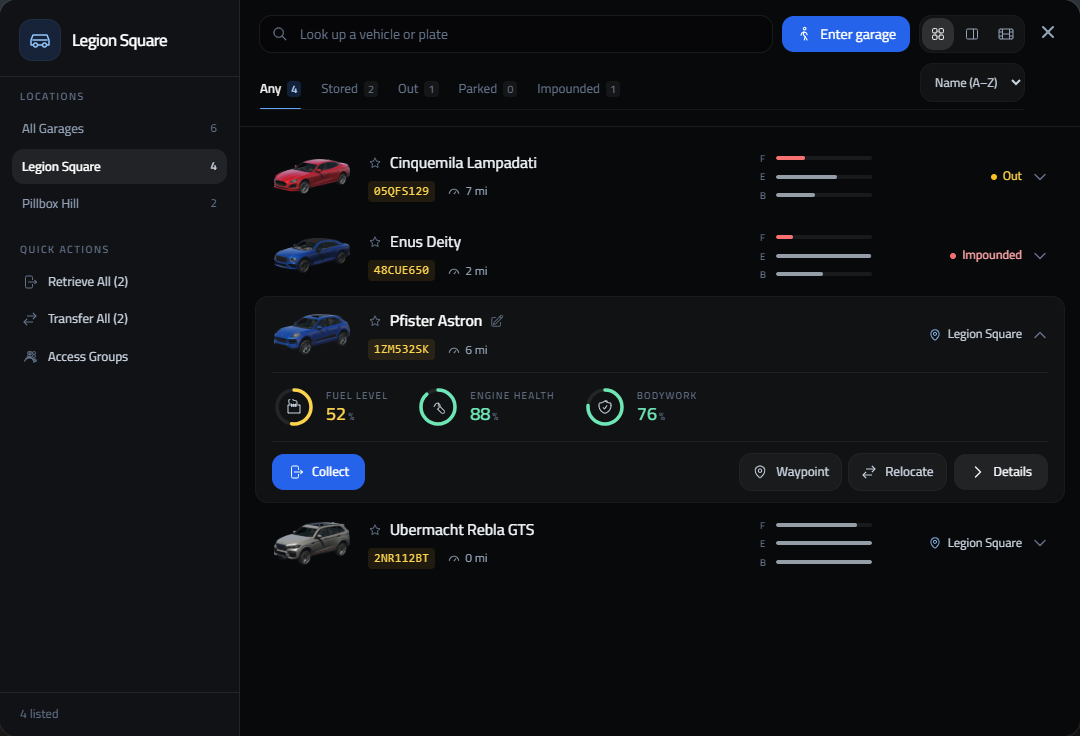
When opening a garage via keypress (E), radial menu, or target interaction, players get the garage window. In the Classic layout it is split into two columns: a sidebar on the left for where the vehicles are and what to do with them, and the vehicle list on the right.
Sidebar
- Garage header: the current garage's name, plus its free spaces and your own space usage when parking capacity is on.
- Locations: every garage you have vehicles in, with a vehicle count for each. All Garages shows them together. A long list scrolls, so this works just as well with fifty garages as with two.
- Quick actions:
- Retrieve All: brings every stored vehicle in view out at once.
- Transfer All: moves every stored vehicle from the selected garage to another one, showing the fee before you confirm. Only offered while a single garage is selected.
- Access Groups: opens the access group manager (when enabled).
- Fleet / Job Vehicles: at job garages, bosses get Fleet for the job's owned vehicles and everyone gets Job Vehicles for the job's spawn list.
- Count: how many vehicles match the current search and filters.
Vehicle list
- Search: look up vehicles by name or license plate.
- Enter garage: walks you into the 3D interior, on garages that have one.
- Layout switcher: the three icons next to it switch between Classic, Side Panel and Cinematic (see Garage Layouts).
- Status tabs: Any, Stored, Out, Parked and Impounded, each with a count for the location picked in the sidebar.
- Sorting: by name, condition, mileage, status or garage.
- Vehicle rows: image, name, plate and mileage, with three slim bars for fuel (F), engine (E) and body (B) that turn red when low. On the right, a stored vehicle shows the garage it sits in; any other vehicle shows its status.
- Opened vehicle card: click a row to open it in place.
- Radial meters show Fuel level, Engine health and Bodywork as percentages.
- Impounded vehicles also list the reason, who impounded them, the retrieval cost and the time left.
- Collect spawns the vehicle on a free parking spot and closes the garage window (paying an impound fine and retrieving does the same). If the vehicle can't come out (stored elsewhere, already out, or no free spot), the window stays open and shows why.
- Waypoint marks the vehicle's garage or parking spot on the map.
- Relocate opens the transfer options for a stored vehicle.
- Details opens the full vehicle panel.
- The pencil next to the name renames the vehicle, and the star pins it to the top of the list.
🔍 Vehicle Details Modal
Clicking Details on an opened vehicle card opens a comprehensive vehicle overview panel:
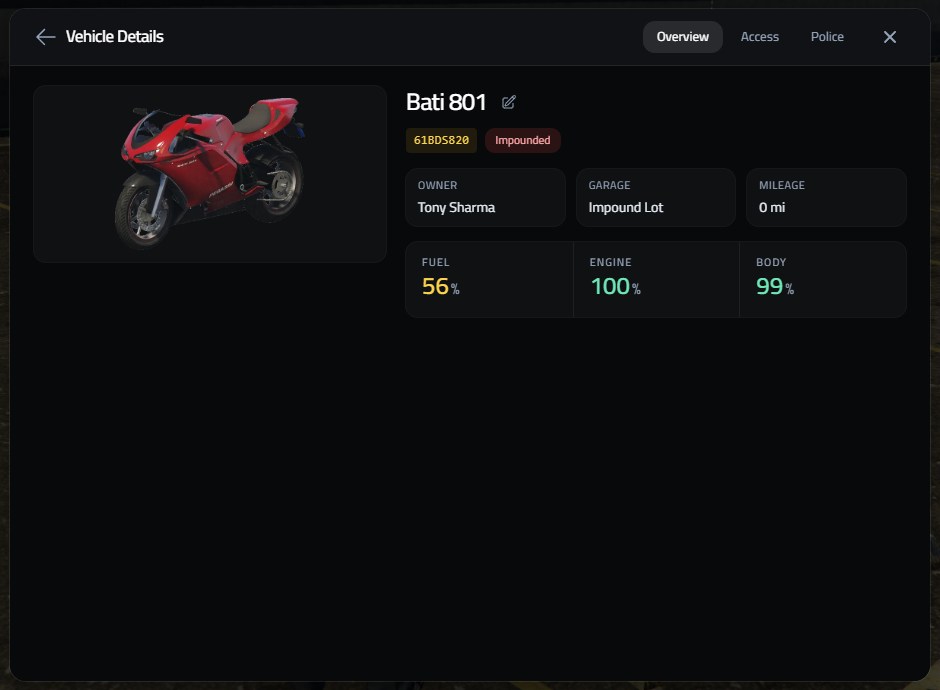
Overview Tab Highlights:
- Live Renders / Custom Thumbnails: High-resolution image preview of the vehicle.
- Vehicle Nickname Editing: Edit vehicle nicknames directly via the pencil icon (e.g. renaming a vehicle to "My Daily Bati").
- Registration Plate & Status Badge: Displays official plate text alongside live status tags (e.g.
Impounded,Stored,Parked). - Detailed Breakdown: Shows registered Owner Name, Current Garage Location, Total Mileage driven (
mi/km), Fuel Level %, Engine Condition %, and Body Health %.
Admin Dashboard
Garages V2 provides server administrators and authorized staff with a powerful, real-time management dashboard accessible in-game via the /garageadmin command.
Street Parking
Garages V2 features an advanced, distance-streamed street parking system allowing players to park their vehicles anywhere in San Andreas or in designated parking lots.