
Clothing & Appearance Shop
The Clothing & Appearance Shop is the core player interface for purchasing and customizing everyday apparel, accessories, and props.
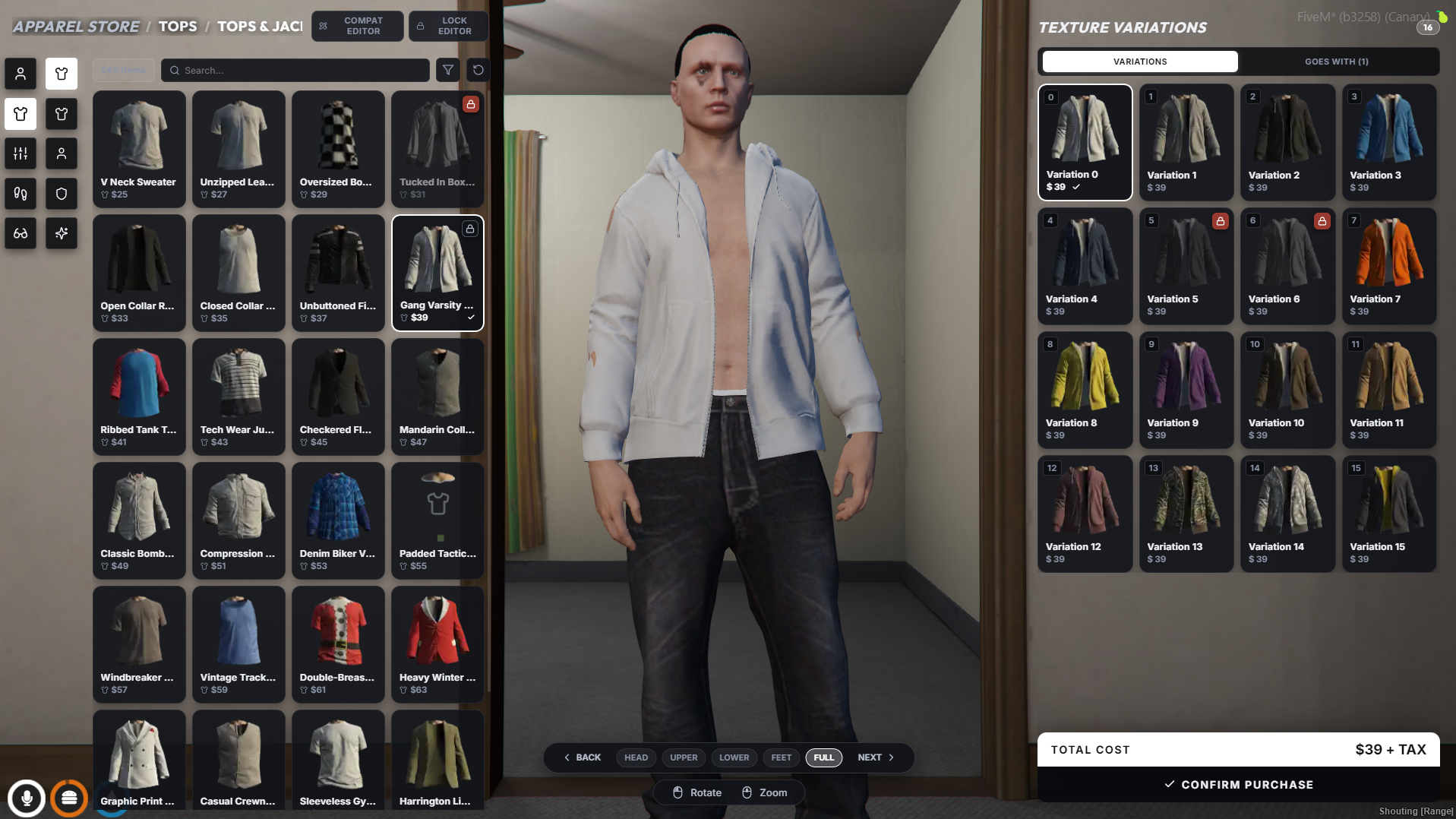
🌟 Features
- Category Rail & Breadcrumb: The icon rail on the left switches between clothing categories (tops, undershirts, pants, shoes, masks, armor, decals, chains, bags) and props (hats, glasses, watches, bracelets). The breadcrumb at the top shows where you are, e.g. Apparel Store / Tops / Tops & Jackets.
- Garment Grid: Every garment in the category as a named tile with a preview image and its price. Use the search box to find a garment by name, filter to narrow the grid, and reset to clear both.
- Texture Variations: Selecting a garment lists every colour of it on the right. Click a variation to put it on.
- Goes With (n): The tab next to Variations suggests undershirts, gloves, chains and other pieces that match the selected garment. See Garment Recommendations & Compatibility.
- Restricted Garments: A padlock badge marks garments and colours locked to a job, grade or citizen. Hover it for the lock's hint. Whole-garment locks are greyed out (or hidden, per
Config.ItemLocksShowLocked) and can't be selected. See Item Locks & Restricted Clothing. - Camera Controls: HEAD · UPPER · LOWER · FEET · FULL frame that part of the body, and BACK / NEXT step the camera around the ped. Left-click drag on the character rotates; the scroll wheel zooms.
- Pricing: A garment costs
base + (garment index × multiplier)fromConfig.Prices, per slot. Every colour of a garment costs the same. See Configuration. - Checkout: Everything you changed since opening the shop is bought together when you press Confirm Purchase. Payment is taken from the player's bank account. If they cannot afford it, or the store requires a job they do not have, the purchase is refused with a notification. With
Config.Inventory.Enabled, each purchased garment is also given as an inventory item. See Inventory Clothing Items.
[!NOTE] The
+ TAXnext to Total Cost is label text only. No tax is added to the price.
🛠️ Admin Tools
Admins see two extra buttons at the top of the garment grid:
- COMPAT EDITOR: author arms and "Goes With" recommendations. See Garment Recommendations & Compatibility.
- LOCK EDITOR: restrict or blacklist garments and colours. See Item Locks & Restricted Clothing.